
Nexus Status LCDs
Nexus Status LCDs allow you to display real-time information about your Nexus network directly on text panels throughout your servers. Simply name your text panels with specific tags to automatically display network data with professional formatting.
Overview

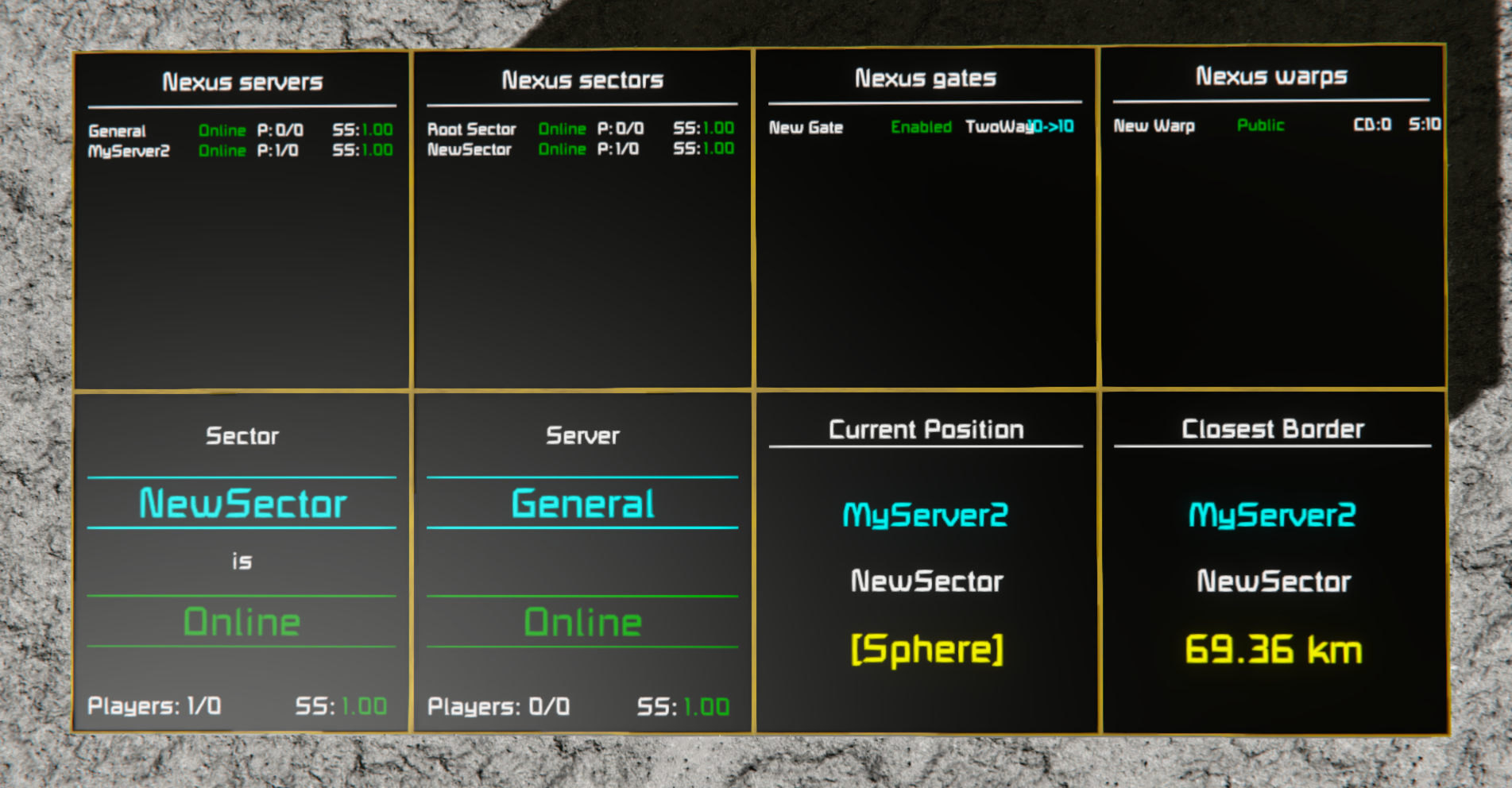
Complete overview of all Nexus Status LCD display types
Overview
Status LCDs are automatically updated and can display:
- Sector information and status
- Server details and online player counts
- Gate and warp listings
- Current position information
- Distance to nearest sector border
All information is displayed with color-coded status indicators and automatically updates in real-time.
Getting Started
To create a Status LCD, simply name a text panel (LCD or surface) with one of the supported tags. The Nexus system will automatically detect the panel name and render the appropriate information.
Basic Example
- Place a text panel on your grid
- Rename it to:
[Nexus Sectors] - The panel will automatically display all sectors and their status
Display Types
Sectors List — [Nexus Sectors]
Displays a list of all sectors in the Nexus network with real-time status.
Shows:
- Sector name
- Online/Offline status (Green/Red)
- Current player count and max players
- Simulation speed
Example name:
[Nexus Sectors]
[Nexus Sectors (fit)]
[Nexus Sectors (fitall)]
Sector Details — [Nexus Sector <SectorID>]
Display detailed information about a specific sector. Replace <SectorID> with the numeric sector ID.
Shows:
- Sector name (large, centered)
- Server ID where sector is hosted
- Shape type (Sphere, Box, etc.)
- All sector metadata
Example names:
[Nexus Sector 1]
[Nexus Sector 5 (fit)]
[Nexus Sector 10 (fitall)]
Servers List — [Nexus Servers]
Shows all servers connected to the Nexus network with current status.
Shows:
- Server name/ID
- Online/Offline status
- Player count
- Simulation speed
- Total grid count
Example names:
[Nexus Servers]
[Nexus Servers (fit)]
Server Details — [Nexus Server <ServerID>]
Display detailed information about a specific server. Replace <ServerID> with the numeric server ID.
Shows:
- Server name
- Current status (Online/Offline)
- Online players and max capacity
- Simulation speed
- Total grids on server
- Server uptime
Example names:
[Nexus Server 1]
[Nexus Server 2]
Gates List — [Nexus Gates]
Displays all gates in the network with their configuration.
Shows:
- Gate name
- Enabled/Disabled status
- Gate direction (OneWay/TwoWay)
- Connected servers (e.g., “1→2”)
Example names:
[Nexus Gates]
[Nexus Gates (fit)]
[Nexus Gates (fitall)]
Warps List — [Nexus Warps]
Shows all available warp points in the network.
Shows:
- Warp name
- Access level (Public/Private)
- Cooldown time remaining
- Destination server
Example names:
[Nexus Warps]
[Nexus Warps (fit)]
[Nexus Warps (fitall)]
This Server — [Nexus ThisServer]
Displays detailed information about the current server (where the LCD is located).
Shows:
- Server name
- Server ID
- Current status (Online/Offline)
- Player count and max players
- Simulation speed
- Total grids on server
- Uptime
Example name:
[Nexus ThisServer]
This Sector — [Nexus ThisSector]
Displays information about the sector containing the LCD’s current position.
Shows:
- Sector name
- Hosting server ID
The LCD automatically determines which sector it’s in based on its world position.
Example name:
[Nexus ThisSector]
Current Position — [Nexus MyPos]
Displays the server and sector where the LCD is currently located.
Shows:
- Server name
- Sector name
- Sector shape type (Sphere, Box, etc.)
This display updates based on the LCD’s world coordinates, so it changes as your grid moves across sector boundaries.
Example name:
[Nexus MyPos]
Border Distance — [Nexus BorderDist]
Shows the distance to the nearest sector border from the LCD’s current position.
Shows:
- Server name
- Closest sector name
- Distance (displayed in meters for distances under 1 km, kilometers for larger distances)
Useful for monitoring when your grid is approaching sector boundaries.
Example name:
[Nexus BorderDist]
Position-Based Display Examples
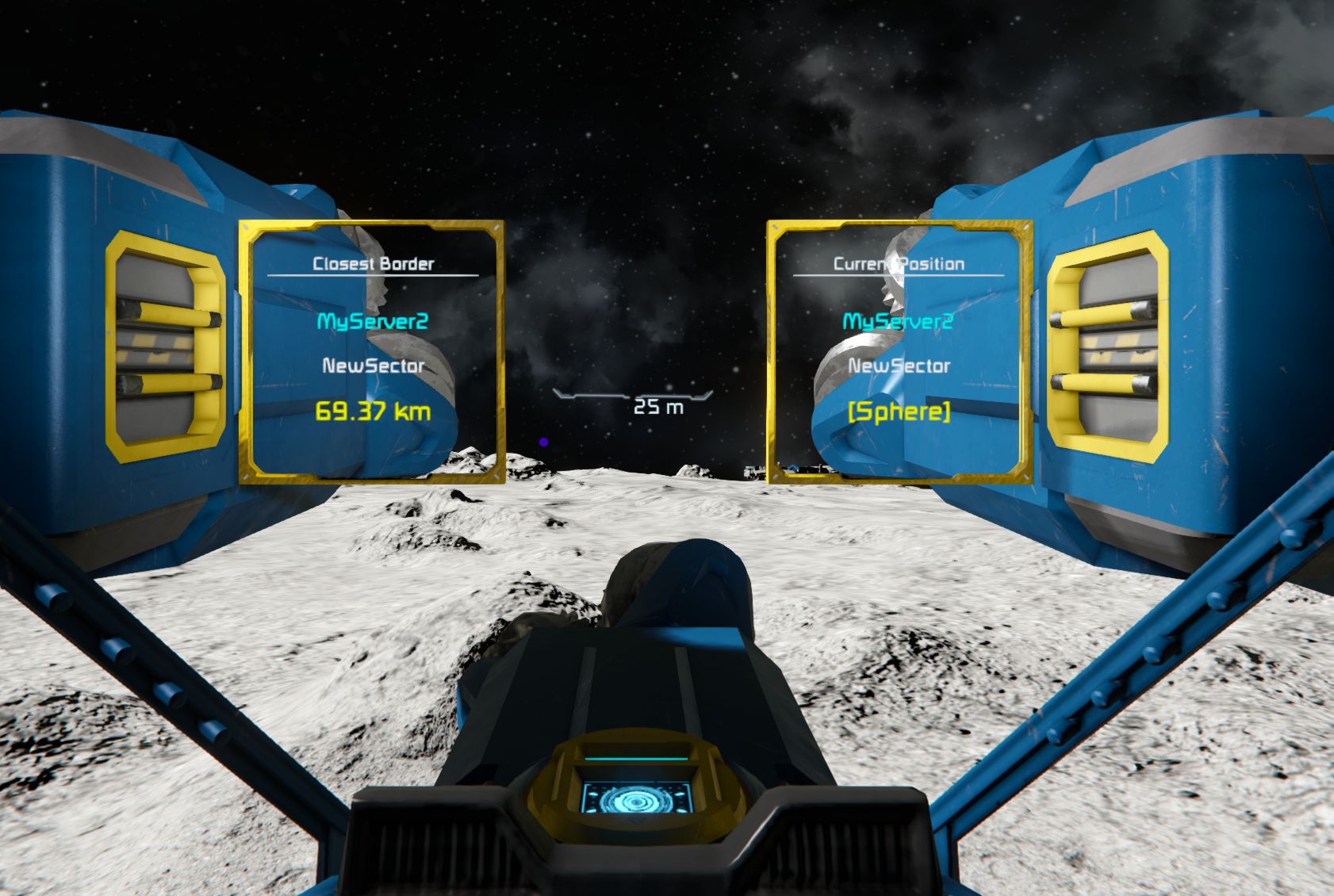
The “Current Position” display (left) shows your location, while “Border Distance” (right) shows proximity to sector boundaries
Display Options
When naming your Status LCD, you can add modifiers to control how content is displayed:
(fit) — Fit Text
Scales down text that is too wide to fit on the LCD while keeping it readable.
Example:
[Nexus Sectors (fit)]
(fitall) — Fit All Lines
Removes line breaks from long names and scales them down so all content appears on screen without clipping.
Example:
[Nexus Gates (fitall)]
Default Behavior (No Modifier)
Long names are clipped with a horizontal scrolling effect to fit within the display width.
Color Indicators
Status LCDs use consistent color coding across all displays:
| Color | Meaning |
|---|---|
| Green | Online / Good health / Healthy |
| Red | Offline / Critical issue |
| Orange | Warning / Partial connection / High load |
| Cyan | Network / Server info / Details |
| Yellow | Position / Location data |
| White | Normal information / Labels |
Player Count Colors
- Green: Less than 60% capacity
- Orange: 60-80% capacity
- Red: Above 80% capacity
Simulation Speed Colors
- Green: 1.0x speed (normal)
- Orange: 0.8-0.99x (slightly slowed)
- Red: Below 0.8x (significantly slowed)
Technical Details
Automatic Updates
Status LCDs update every 60 game ticks. All information is fetched in real-time from the Nexus network sync system.
Position-Based Information
Displays like [Nexus MyPos] and [Nexus BorderDist] determine sector information based on the LCD’s block position. They work best when placed on grids or within structures.
Terminal Block Requirement
Displays that require position information (MyPos, BorderDist, ThisSector) must be placed on terminal blocks (grids, platforms, etc.) to function properly. Ensure the LCD is part of a grid with proper grid hierarchy.
Error Handling
If data is unavailable, the LCD displays an error message:
- “ThisServer not available yet.” — Nexus is still initializing
- “BorderDist requires a terminal block LCD.” — LCD not placed on proper grid block
- “Can’t find sector of id X” — Sector ID doesn’t exist
Best Practices
- Use clear names — Avoid special characters in sector/server names for better readability
- Place strategically — Put main status panels in control rooms and lobby areas
- Use (fitall) for crowded lists — Gates and warps lists look best with
(fitall)when you have many entries - Monitor simspeed — Watch simulation speed on server panels to catch performance issues
- Track uptime — Use
[Nexus ThisServer]to monitor session stability - Position awareness — Use
[Nexus MyPos]on mobile grids to track sector transitions
Troubleshooting
LCD Shows Blank or Error Message
Cause: Nexus sync system is still initializing.
Solution: Wait 10-30 seconds and check again. The network takes time to synchronize on first load.
Long Names Get Cut Off
Cause: Using default display (no modifier) with long sector/gate/warp names.
Solution: Add (fit) or (fitall) to the LCD name:
[Nexus Sectors (fitall)]
Position-Based Displays Show “Unknown”
Cause: LCD is not placed on a terminal block or grid.
Solution: Ensure the LCD is mounted on a grid block, and the grid is properly initialized in the world.
Data Updates Slowly or Not at All
Cause: Server or network connectivity issues.
Solution:
- Verify the server is online and marked as “Online” in
[Nexus Servers] - Check network connectivity between servers
- Restart the Nexus plugin on the server
See Also
- Nexus Features Overview — Overview of all Nexus capabilities
- Spawn Pads — Server-to-server player transportation
- Warps — Fast travel between warp points
- Gates — Sector crossing mechanics